 ExploreZone
Sign in to the admin portal
Log in with your password and an authenticator code, and what to do the first time or when you lose access.
The first time #
A super admin creates your account and gives you a temporary password, shown once. You then:
- Open the admin portal and enter your email address and the temporary password.
- Choose a new password. Use a long one that you do not use anywhere else.
- Set up your authenticator: scan the QR code with an authenticator app on your phone (Google Authenticator, Microsoft Authenticator, Authy), or type the secret key shown.
- Type the 6-digit code the app shows to finish.
Every time after that #
- Enter your email and password.
- Enter the current 6-digit code from the authenticator app. It changes every 30 seconds.
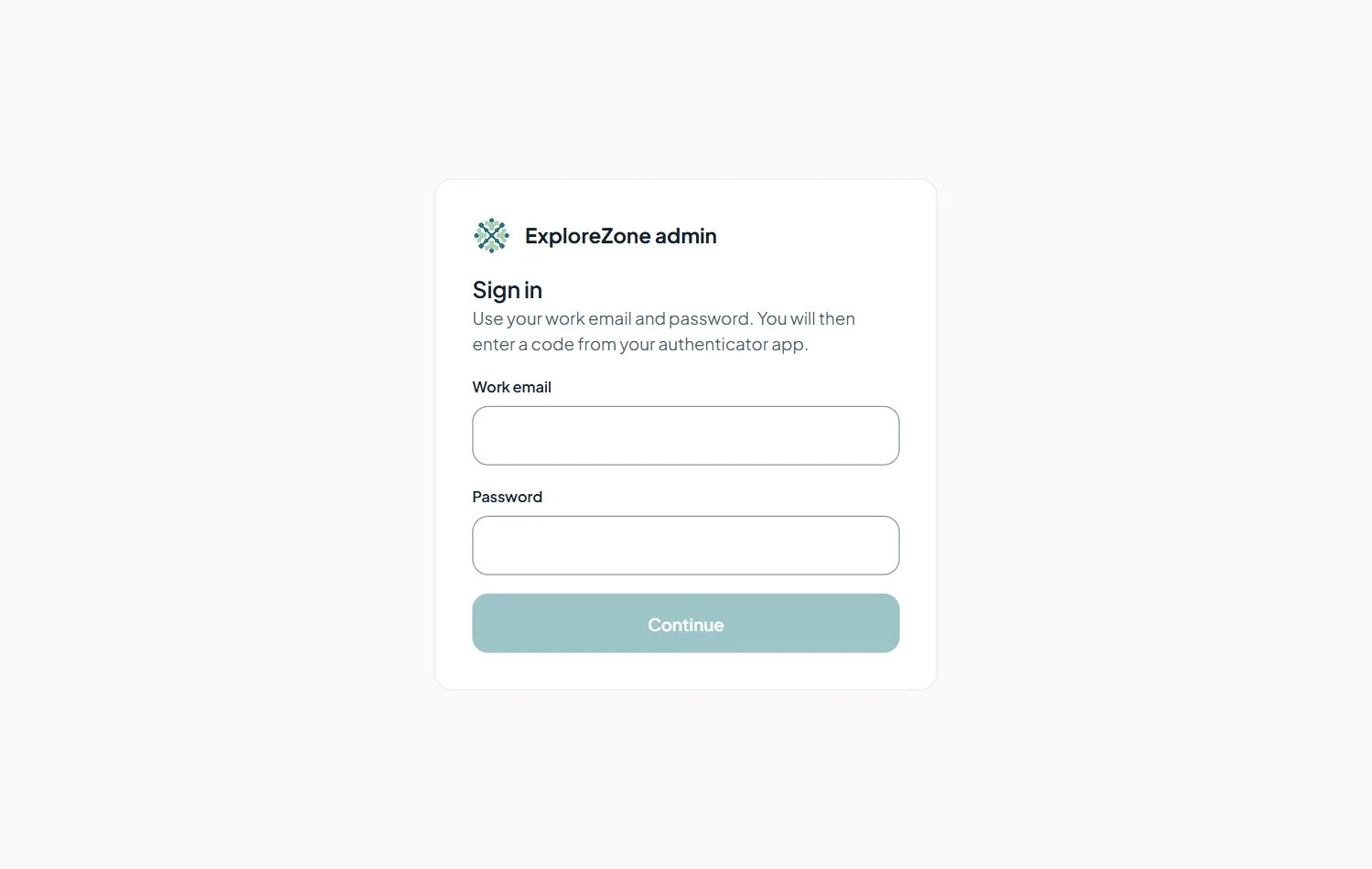
Repeated wrong passwords or codes lock the login for a while. Wait and try again.
Session #
You stay logged in while you work. After a period of inactivity you are logged out. Always press Log out on a shared computer.
Lost phone or authenticator #
Ask a super admin to Reset access for you (Admin team). They give you a new temporary password and you set up the authenticator again. If the only super admin loses access, the server owner can create a new one from the server (see Operations).
Last updated 2026-11-15. Something unclear or out of date? Write to [email protected] or call 6383281461.