 ExploreZone
Approve ordering and watch orders
Switch ordering on for a business after checking it, and step in when an order has a problem.
Orders #
Open Orders to see orders across all businesses. Use the filters to find an order by number, status or business. Open one to see the items, the people, the timeline and the notes.
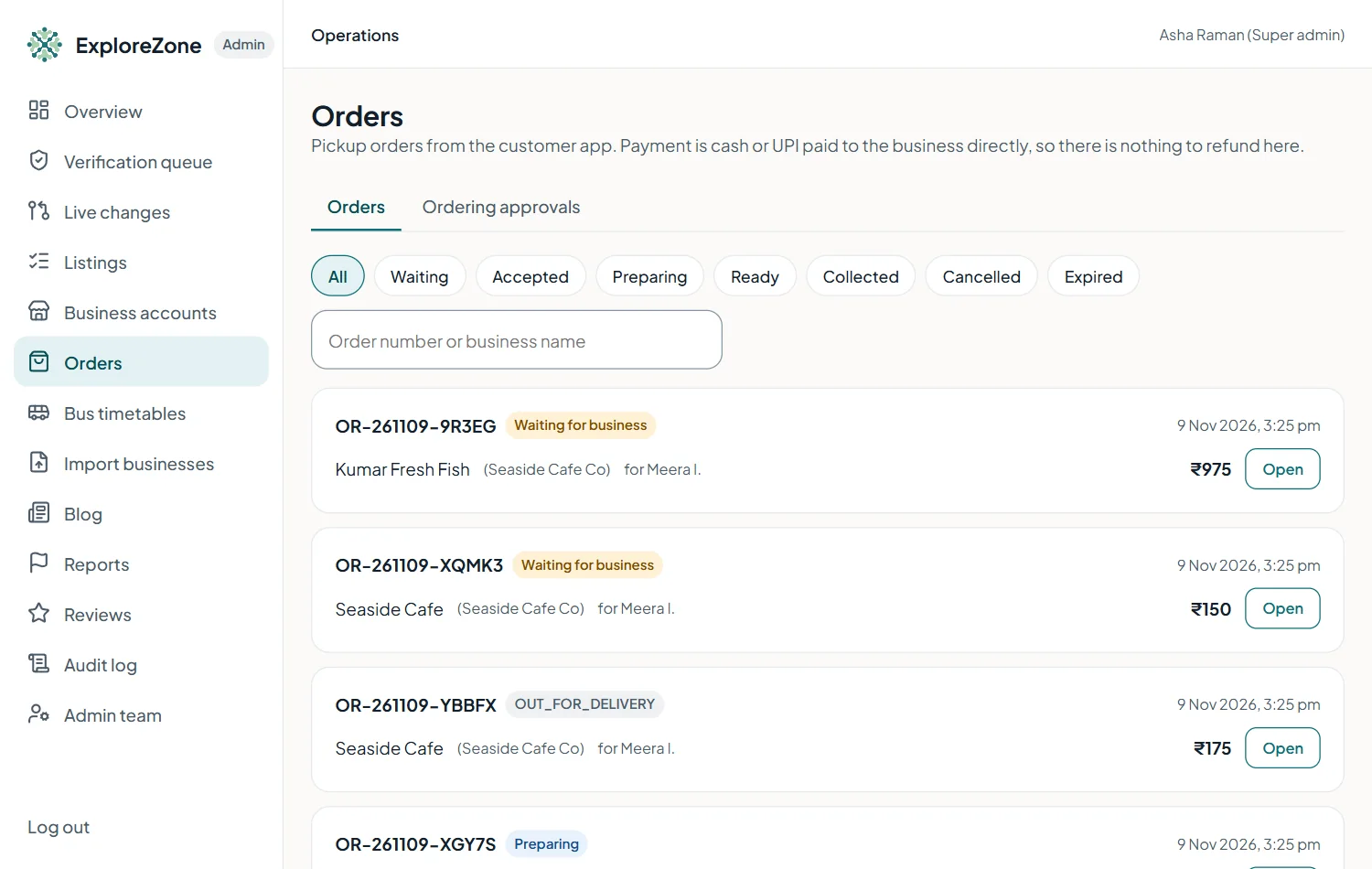
Money never passes through ExploreZone. Customers pay the business directly, and the business marks orders as paid.
Cancel an order #
Admins can cancel an order that has gone wrong (for example a business that has disappeared). Open it, press Cancel this order, and give a reason. The customer is told.
Ordering approvals #
A business can take orders only after you approve it. Open Orders, then the Ordering approvals tab.
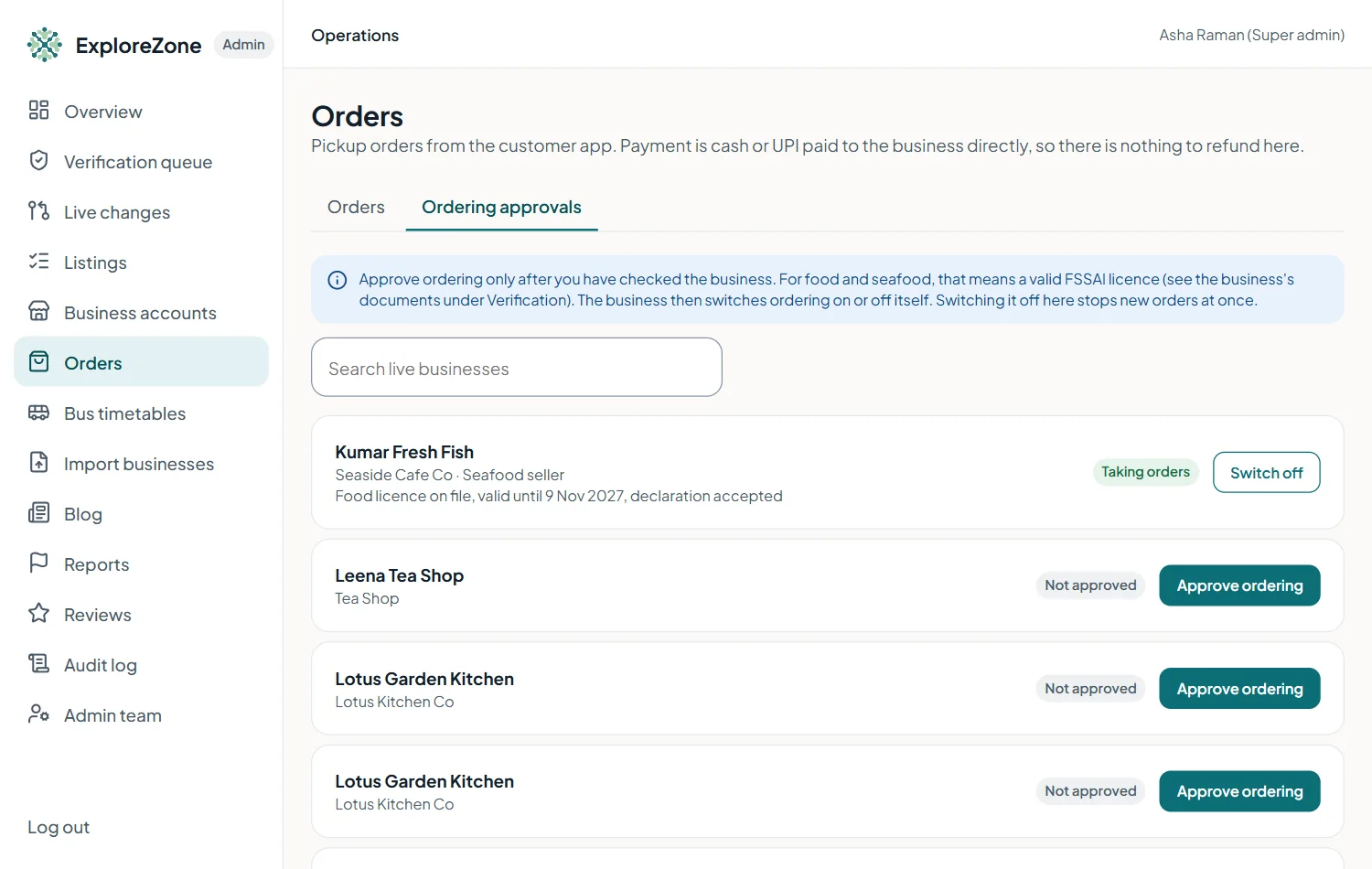
- Search for the business.
- Check it is Live and that you have verified it.
- Food businesses and seafood sellers: check the FSSAI food licence. The seafood row shows whether the licence is on file, its valid-until date and that the handling declaration was accepted.
- Press Approve ordering.
The business can now switch Accepting orders on. You can press Switch off at any time, for example if a licence expires.
Last updated 2026-11-15. Something unclear or out of date? Write to [email protected] or call 6383281461.