 ExploreZone
Order food for pickup or delivery
Choose dishes, pick pickup or delivery, and collect your order with a 6-digit code.
Before you start #
You must be logged in. Ordering is available at businesses that ExploreZone has approved for ordering. Their page shows an Order button.
You pay the business directly, in cash or UPI. ExploreZone does not take or hold your money, and the business marks your order as paid.
Place an order #
- Open the restaurant or shop and scroll to the Order for pickup or delivery button (or Order). You can also open the Order tab and choose Food to see restaurants that take orders.
- Tap Add next to each dish. Use + and - to change the quantity.
- Tap Review order.
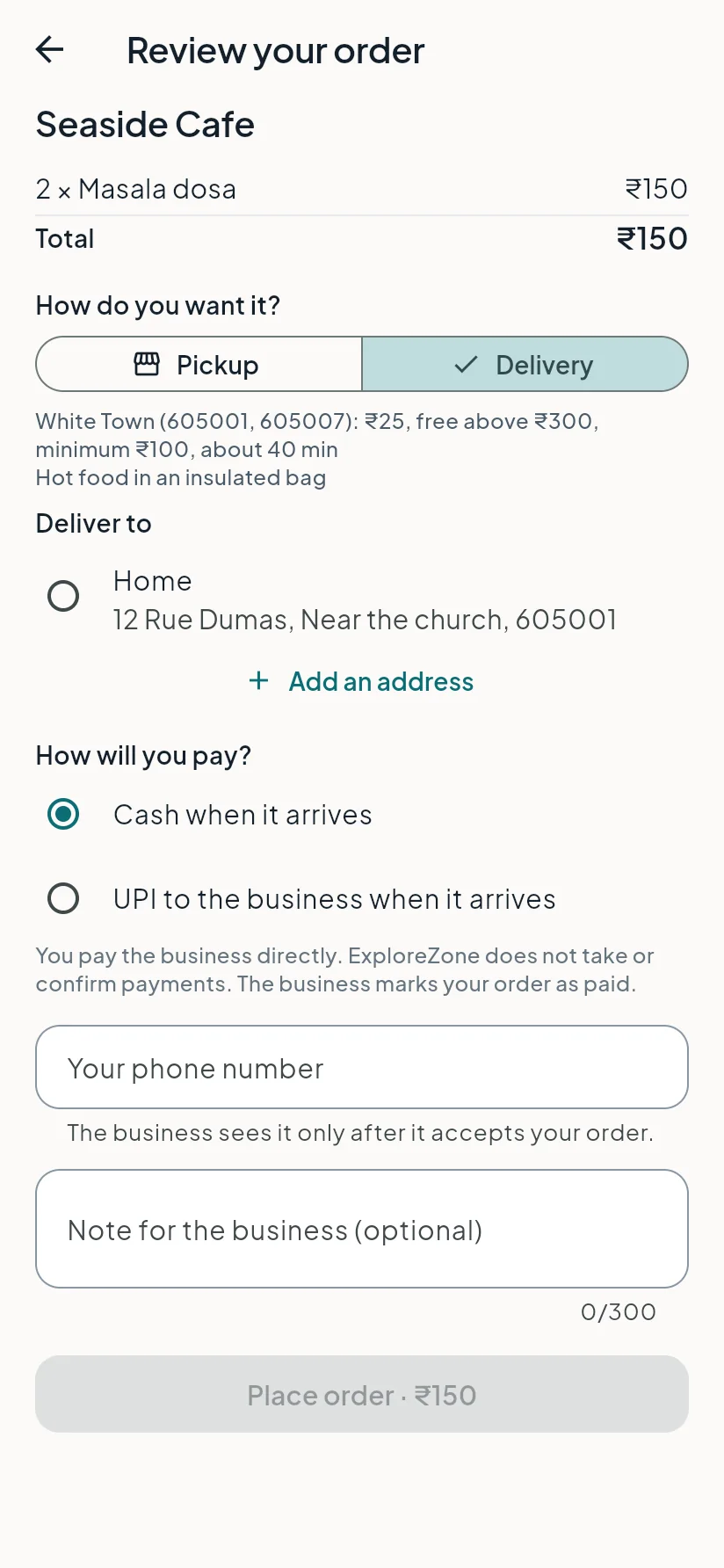
- Choose how you want it: Pickup (you collect it from the business) or Delivery (the business brings it to you; this only appears if the business delivers).
- For delivery, choose a saved address or tap Add an address (house and street, landmark and pincode). The app shows the delivery zone, the fee, the minimum order and the total before you order. If your pincode is outside the business's delivery area, the app tells you.
- Choose how you will pay: Cash or UPI to the business when it arrives. If it is switched on, Pay online also appears: after the business accepts, a Pay now button on the order screen opens a secure payment page, and the order shows Paid online afterwards.
- Check your phone number and add a note if you like ("less spicy").
- Tap Place order.
After you order #
The business has about 10 minutes to accept. If it does not answer, the order ends by itself and nothing is charged.
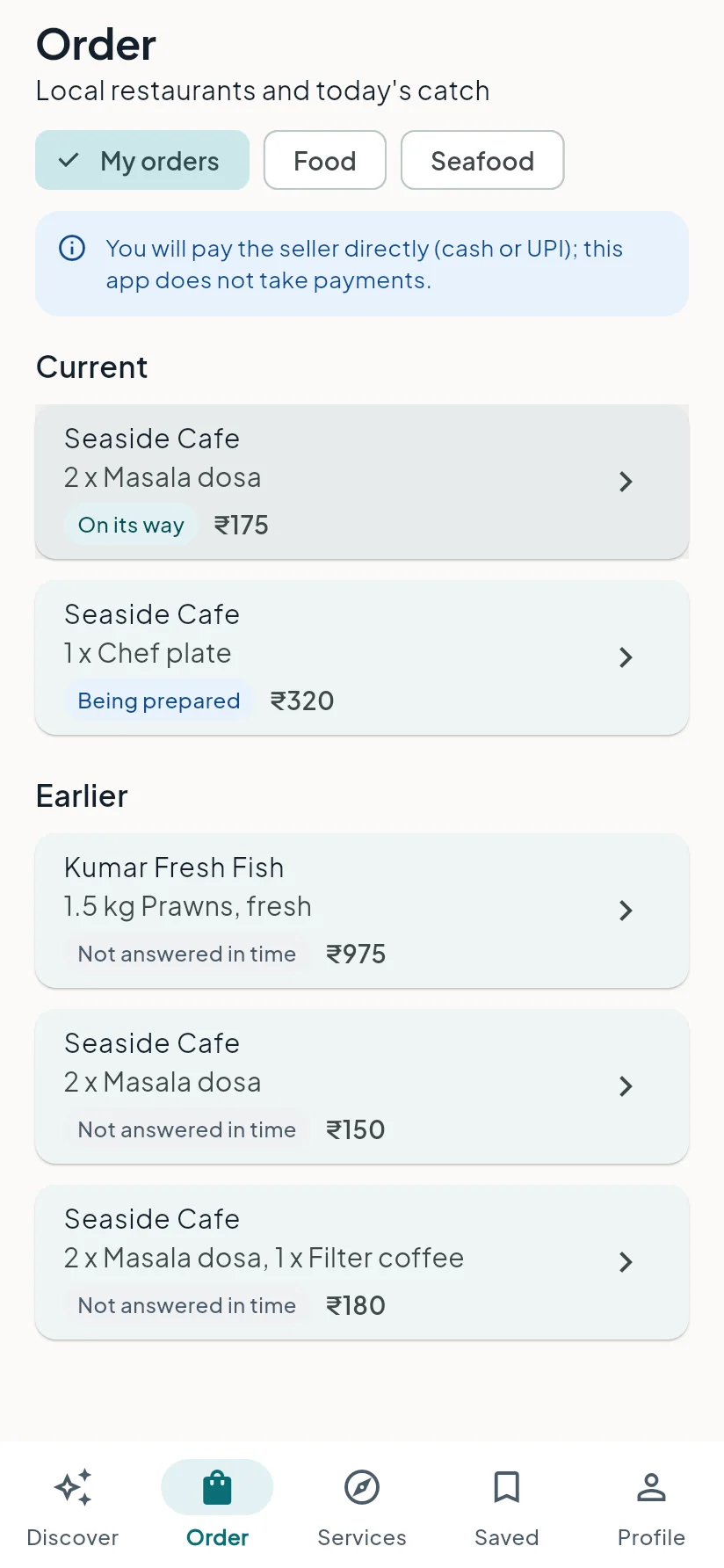
Find all your orders in the Order tab under My orders: current orders first, then earlier ones. Tap an order to follow it on its status screen:
| Step | What it means |
|---|---|
| Placed | The business has your order. |
| Accepted | The business agreed to make it. |
| Preparing | It is being made. |
| Ready for pickup | You can come and collect it (pickup orders). |
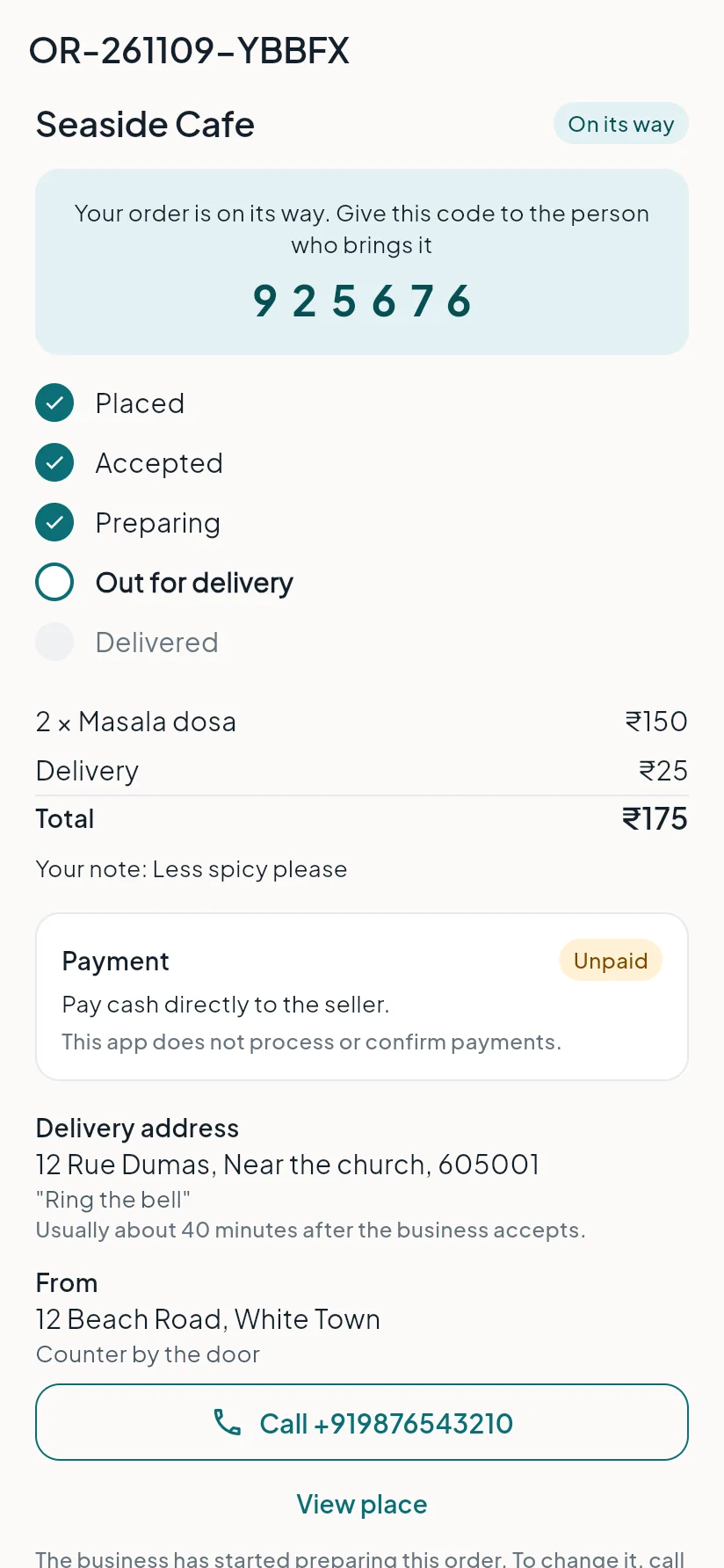
| On its way | The order is out for delivery (delivery orders). |
| Collected / Delivered | Done. |
| Not answered in time | The business did not accept within the time. Nothing is charged. |
Collecting your order #
When the order is ready, the status screen shows a 6-digit code. Show it to the person at the counter, or give it to the person who delivers. They enter it to confirm the handover. Keep the code private until you are handing over.
Cancel an order #
You can cancel until the business starts preparing it (while the order is Placed or Accepted): open the order, tap Cancel order and choose a reason (changed my mind, ordered by mistake, too slow, or other). Once preparing has started, please call the business.
Last updated 2026-11-15. Something unclear or out of date? Write to [email protected] or call 6383281461.