 ExploreZone
Take and manage food orders
Switch ordering on, accept orders, prepare them, hand them over with the code and mark them paid.
Switching ordering on #
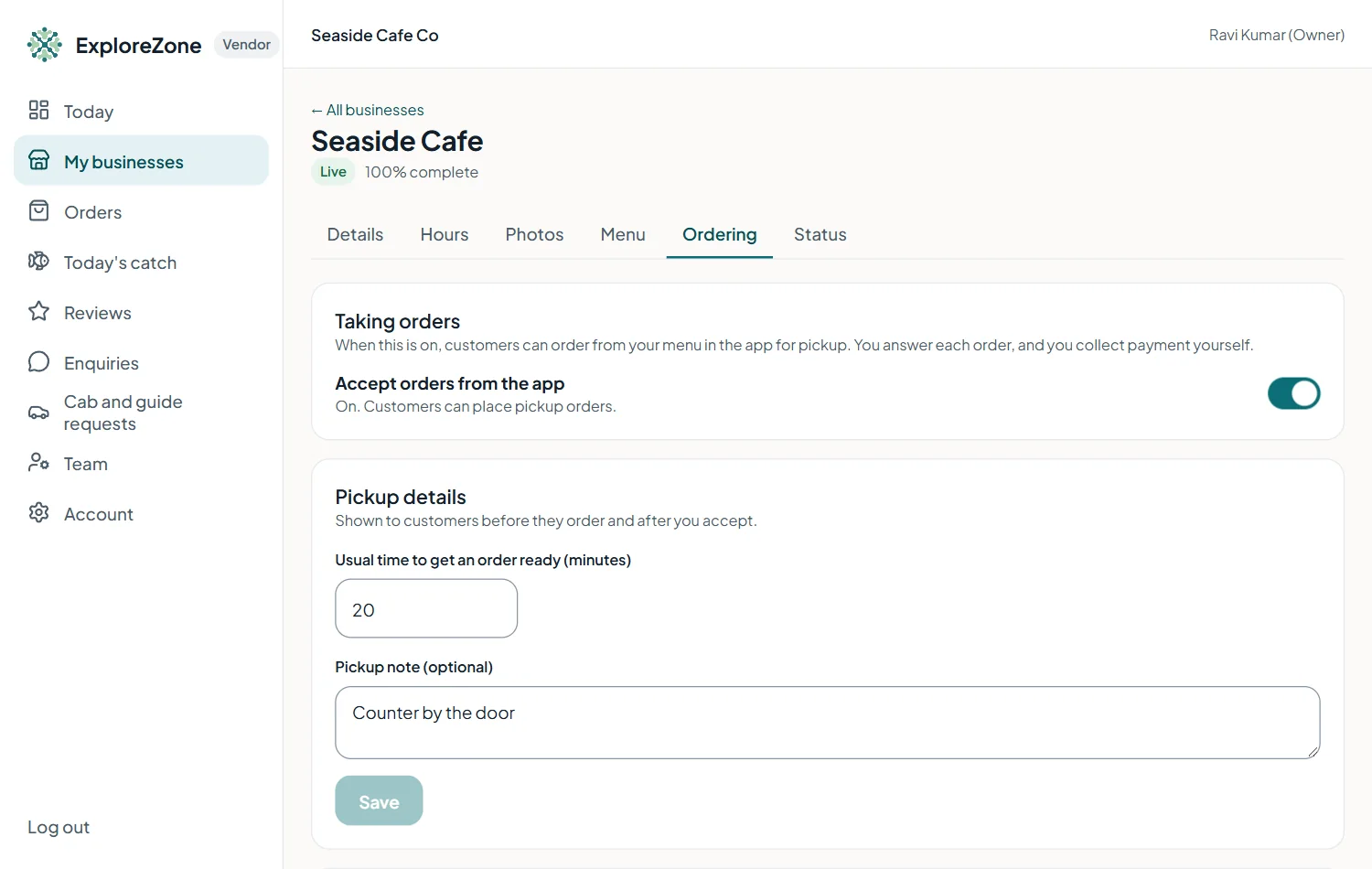
Ordering is approved by the ExploreZone team after they check your business (for food: your FSSAI licence). Until then the Ordering tab says so. Write to us to ask. Once approved, in the Ordering tab you can:
- Switch Accepting orders on or off. Switch it off when you are closed or too busy.
- Set the usual preparation time in minutes.
- Add a pickup note, for example "Counter by the door".
The orders board #
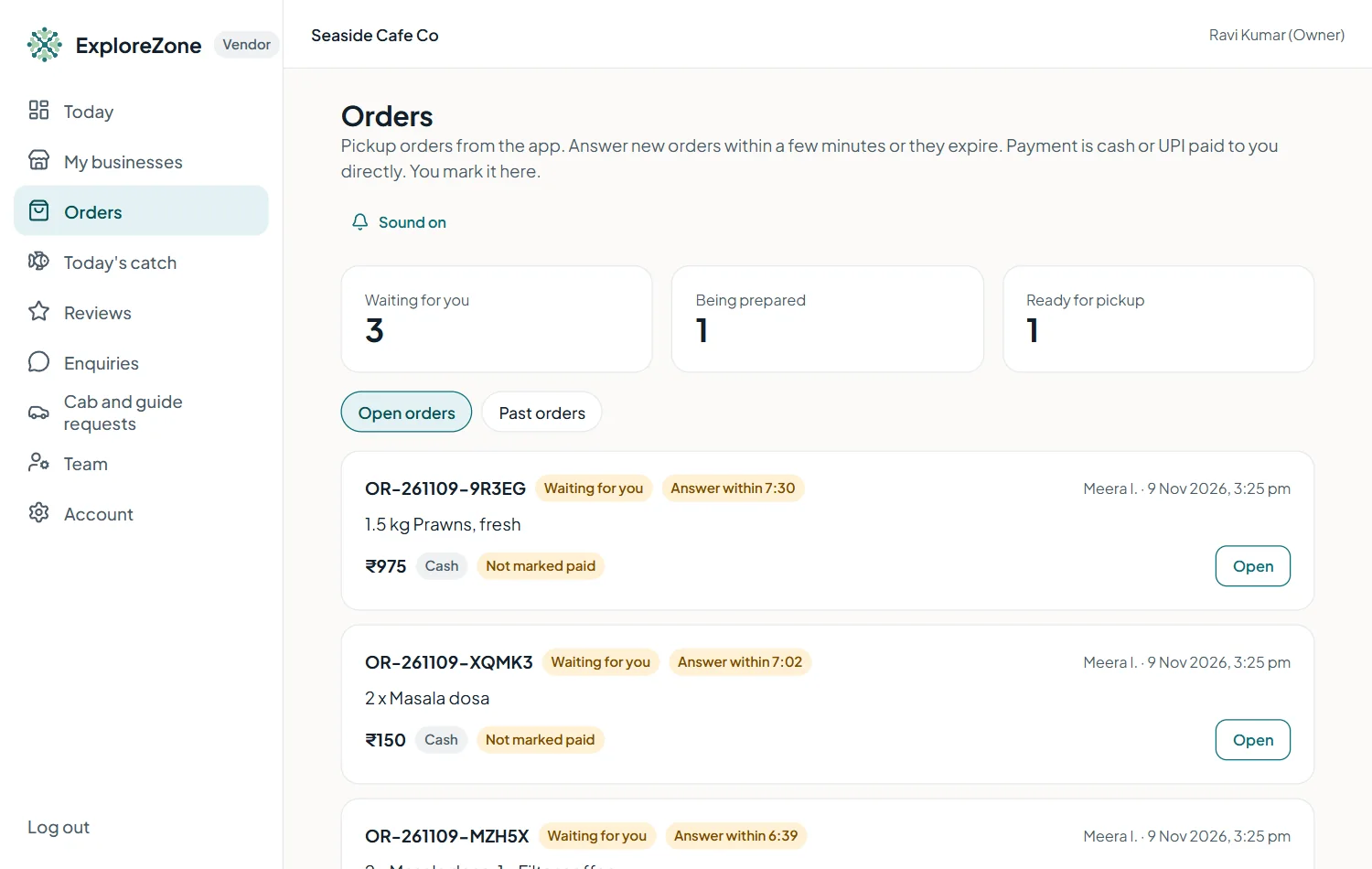
Open Orders. New orders appear at the top, and a sound plays (you can mute it). Each order shows the items, the total, the customer's name and a countdown.
Handle an order #
- Accept or reject within about 10 minutes. If you do not answer, the order ends by itself. If you reject, choose a reason.
- After you accept, you see the customer's phone number (and, for delivery, the address).
- Press Start preparing.
- For pickup, press Ready for pickup. For delivery, press Out for delivery.
- At handover, press Hand over and type the customer's 6-digit code. The order is complete.
- Press Mark paid when you have received cash or UPI.
If something goes wrong, you can cancel an accepted order with a reason.
Getting paid #
Customers pay you directly, in cash or UPI. ExploreZone does not confirm those payments. Use Mark paid so your records and the customer's order show the right state.
If online payment is switched on #
When ExploreZone switches online payment on, a customer can choose Pay online. The order then shows Waiting for online payment after you accept it, and Paid online when the customer has paid. The Mark as paid button is hidden for these orders because the payment marks the order by itself. ExploreZone will tell you how the money reaches you before it switches this on.
Last updated 2026-11-15. Something unclear or out of date? Write to [email protected] or call 6383281461.